Here is the complete guide about How to enter into Recovery mode on Archos. You don’t need any software or Computer to access Recovery mode.
If your smartphone running slow or forgot your smartphone password, or phone not responding, and so on, You must enter to Android recovery mode to fix those issues.
Archos Mobiles List
- Archos 50f Helium Recovery Mode
- Archos 50f Helium Lite Recovery Mode
- Archos 55 Helium Recovery Mode
- Archos 55 Helium Ultra Recovery Mode
- Archos 55 Helium 4 Seasons Recovery Mode
- Archos 50 Saphir Recovery Mode
- Archos 45 Helium 4G Recovery Mode
- Archos 50 Helium 4G Recovery Mode
- Archos 64 Xenon Recovery Mode
- Archos 50c Oxygen Recovery Mode
- Archos 40b Titanium Recovery Mode
- Archos 45c Platinum Recovery Mode
- Archos 50b Platinum Recovery Mode
- Archos 50 Diamond Recovery Mode
- Archos 45b Helium 4G Recovery Mode
- Archos 50b Helium 4G Recovery Mode
- Archos 50c Helium 4G Recovery Mode
- Archos 50 Oxygen Plus Recovery Mode
- Archos 62 Xenon Recovery Mode
- Archos 52 Platinum Recovery Mode
- Archos 59 Xenon Recovery Mode
- Archos 50d Oxygen Recovery Mode
- Archos Diamond 2 Note Recovery Mode
- Archos Diamond 2 Plus Recovery Mode
- Archos 55 Diamond Selfie Recovery Mode
- Archos 50 Graphite Recovery Mode
- Archos 55 Graphite Recovery Mode
- Archos Diamond Alpha Recovery Mode
- Archos Diaomond Gamma Recovery Mode
- Archos Sense 55s Recovery Mode
- Archos Sense 50x Recovery Mode
- Archos Diamond Alpha Plus Recovery Mode
- Archos Access 4 Recovery Mode
- Archos Access 4.5 Recovery Mode
- Archos Access 5 Recovery Mode
- Archos Access 5.5 Recovery Mode
- Archos Core 50 Recovery Mode
- Archos Sense 47X Recovery Mode
- Archos Diamond Tab Recovery Mode
- Archos Diamond Omega Recovery Mode
- Archos Saphir 50X Recovery Mode
- Archos Oxygen 68XL Recovery Mode
- Archos Diamond Recovery Mode
- Archos Core 62S Recovery Mode
- Archos Oxygen 57 Recovery Mode
What can do with recovery Mode?
- Reboot system
- Factory Reset
- Wipe data
- Run graphics tests
- Software update from ADB or SD card
What is Recovery Mode?
Recovery Mode is an independent, light-weight runtime surroundings that is included on a separate partition from the main Android operating system (OS) on all Android devices like mobiles and tablets, and so on.
The main function of the recovery mode is to fix the smartphone while staying away from the faulty OS of the smartphone. You may boot directly into the recovery menu and use it to factory reset your device, reboot the system, delete the cache partition, and apply software updates or firmware updates, and so forth.
Options in Recovery Mode
Wipe data option is used to wipe or delete information for your Android smartphone or tablet. This will remove media documents, apps, contacts, and settings, and so on from your Archos smartphone. You don’t want any password to apply this option. Some latest smartphones asking password to wipe information.
Install update option is used to install software or firmware from smartphone memory or SD card. You can upgrade to the latest software version with this option. You need to download and place the firmware file on the smartphone memory or SD card before using this option. A few Smartphones have the option to downgrade to a lower version.
System repair Mode choice is used to repair a little software related problems. It’s going to automatically repair your Android smartphone problems.
Enter into Recovery Mode on Archos
Entering into recovery mode could be very easy on Archos Android smartphone. Recovery menu consists of Reboot system, Wipe data, install an update, system repair mode, power down and advanced options, and so on.
Step – 1
- First, switch off your Archos Android smartphone, by holding the power button.
- After that, hold down the
- volume Up + power button (OR)
- volume Down + power button
- When you see the logo on the display, release all the keys.
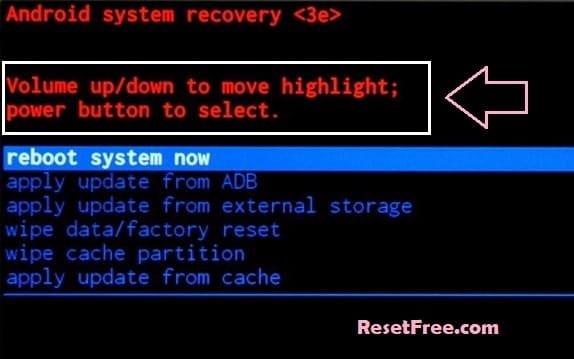
- Finished, Now you are in Android smartphone recovery Mode.
Be aware: In case you do not go to recovery mode automatically after releasing all keys, do this. While holding down the power key, press and release volume up key Or Press the power key {camera key} once.
Step – 2
- First, switch off your Archos Android smartphone, by holding the power button.
- After that, hold down the
- Volume Down + Power Button (OR)
- Volume Up + Power Button (OR)
- Volume Up + Home + Power button (OR)
- Volume Up + Bixby+ Power button (OR)
- When you see the logo on the display, release all the keys.
- Subsequent, you may see the Android exclamation mark.
- While holding down the power key, press and release the volume up key.
- Finished, Now you are in Android smartphone recovery Mode.
Step – 3
- First, switch off your Archos Android smartphone, by holding the power button.
- After that, hold down the
- volume Up + power button (OR)
- volume Down + power button
- When you see the logo on the display, release all the keys.
- Later on, pick out Language, use volume keys to scroll down and confirm with the power key.
- After that, pick out a Recovery option.
- Finished, Now you are in Android smartphone recovery Mode.
Step – 4
- First, switch off your Archos Android smartphone, by holding the power button.
- After that, hold down the
- volume Up + power button (OR)
- volume Down + power button
- When you see the download mode on the display, release all the keys.
- Later on, pick out Reboot bootloader, use volume keys to scroll down and confirm with the power key.
- After that, pick out a BOOT TO RECOVERY MODE option.
- Subsequent, you may see the Triangle.
- While holding down the power key, press and release the volume up key.
- Finished, Now you are in Android smartphone recovery Mode.
Exit Recovery mode
- After you enter the Recovery Mode menu.
- Use the volume buttons to select the Reboot system now option, and press the power button to confirm.
- After that, Your device will be rebooted automatically.
- Now you have successfully exited Recovery mode
Reboot Archos
In case your smartphone running slow or phone no longer responding, you could reboot your smartphone.
Step – 1
- First of all, press and hold the power key.
- Subsequent, tap on the reboot or restart option.
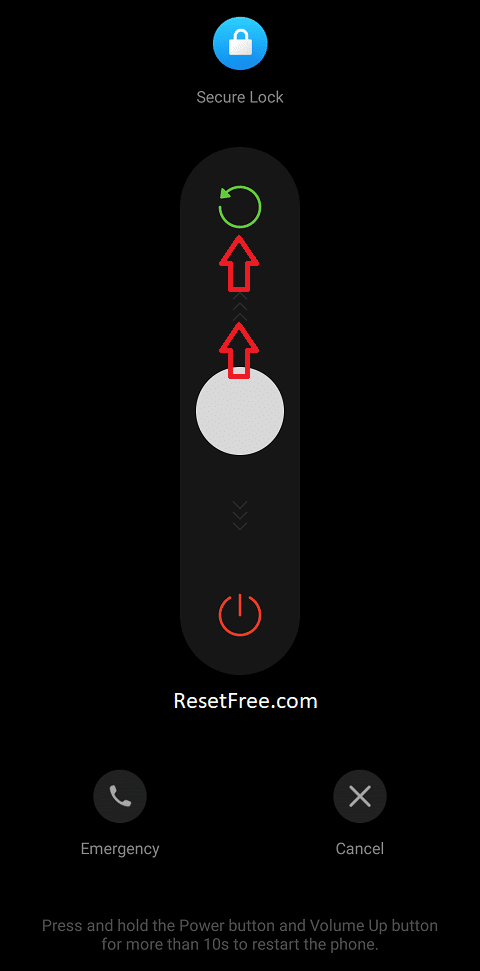
- Sooner or later, your device should reboot.
Step – 2
- First, switch off your Archos Android smartphone, by holding the power button.
- After that, hold down the
- volume Up + power button (OR)
- volume Down + power button
- When you see the logo on the display, release all the keys.
- Now you are in Android smartphone recovery Mode.
- After that, select the Reboot to system option.
- Finished, Now you are in Android smartphone recovery Mode.
- Android Phone Hard Reset
- Android Phone Unlock
- Android Phone Flash File
- Android Phone Secret Codes
- Android Phone Software Update
- Android Phone Backup
